Set up an on-call schedule to ensure that your support team is available and reachable regardless of day or time to handle critical incidents. With an on-call schedule, ensure sufficient redundancies are built into your support desk, irrespective of weekends and holidays.
How on-call schedules work:
- An organization may have multiple on-call schedules to prevent gaps in coverage hours.
- Each schedule is linked to either an agent group with specialized knowledge in a specific field, a particular location, or a combination of both.
- A schedule encompasses all hours and every day, ensuring the availability of an agent at any given time to respond to an incident.
- One or more shifts can be associated with an on-call schedule.
- A shift represents a pattern of time slots defined by day, time zone, or both; for instance, a weekday shift, weekend shift, APAC shift, North America shift, or North America weekday shift.
Here's how you can set up an on-call schedule:
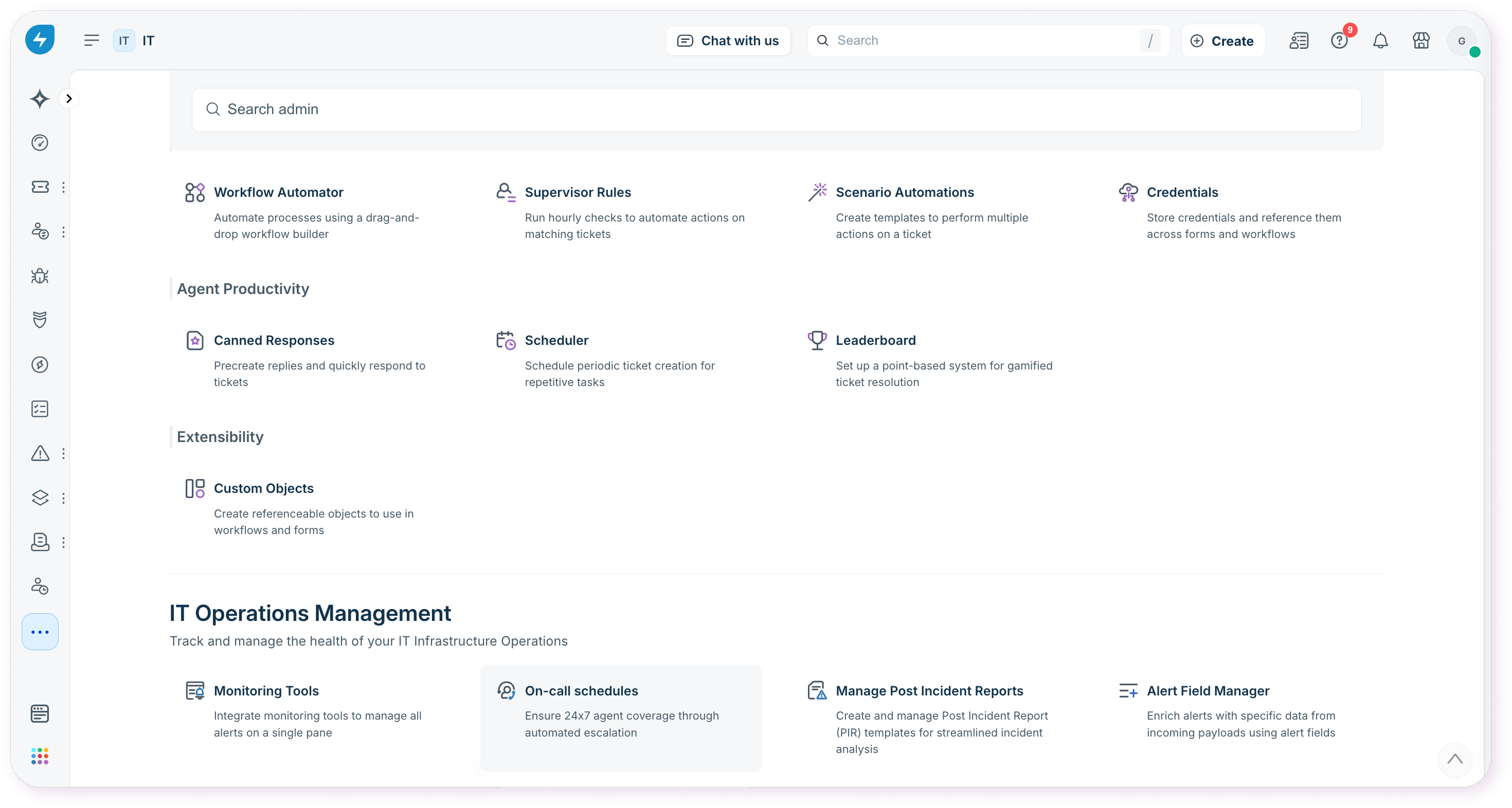
- Go to Admin Settings > IT Operations Management section > On-Call Schedules. To set up on-call schedules for specific workspaces, go to Admin > Workspace > IT Operations Management section > On-Call Schedules.
- Click . Add a name for the schedule, assign it to an agent group, and click .
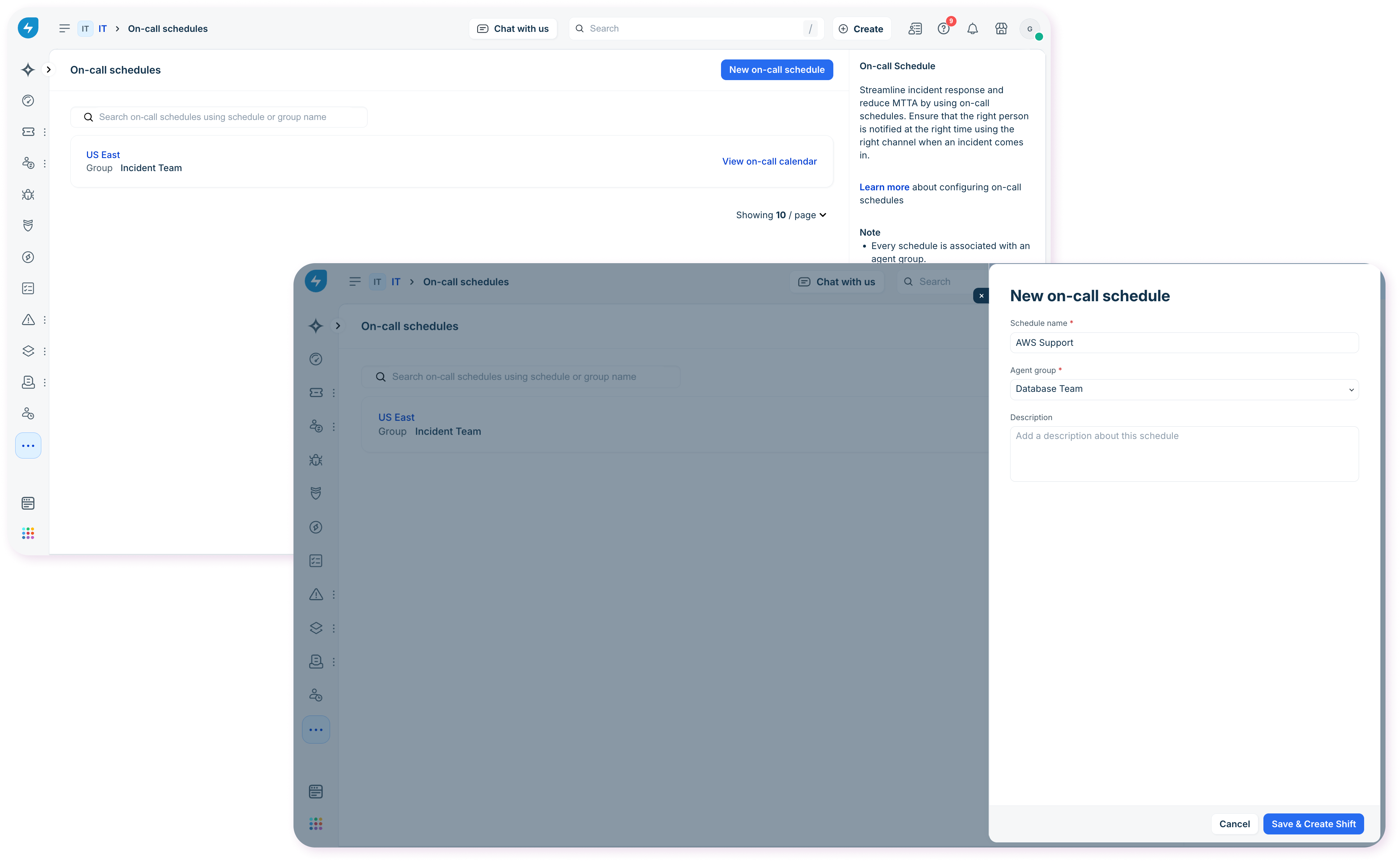


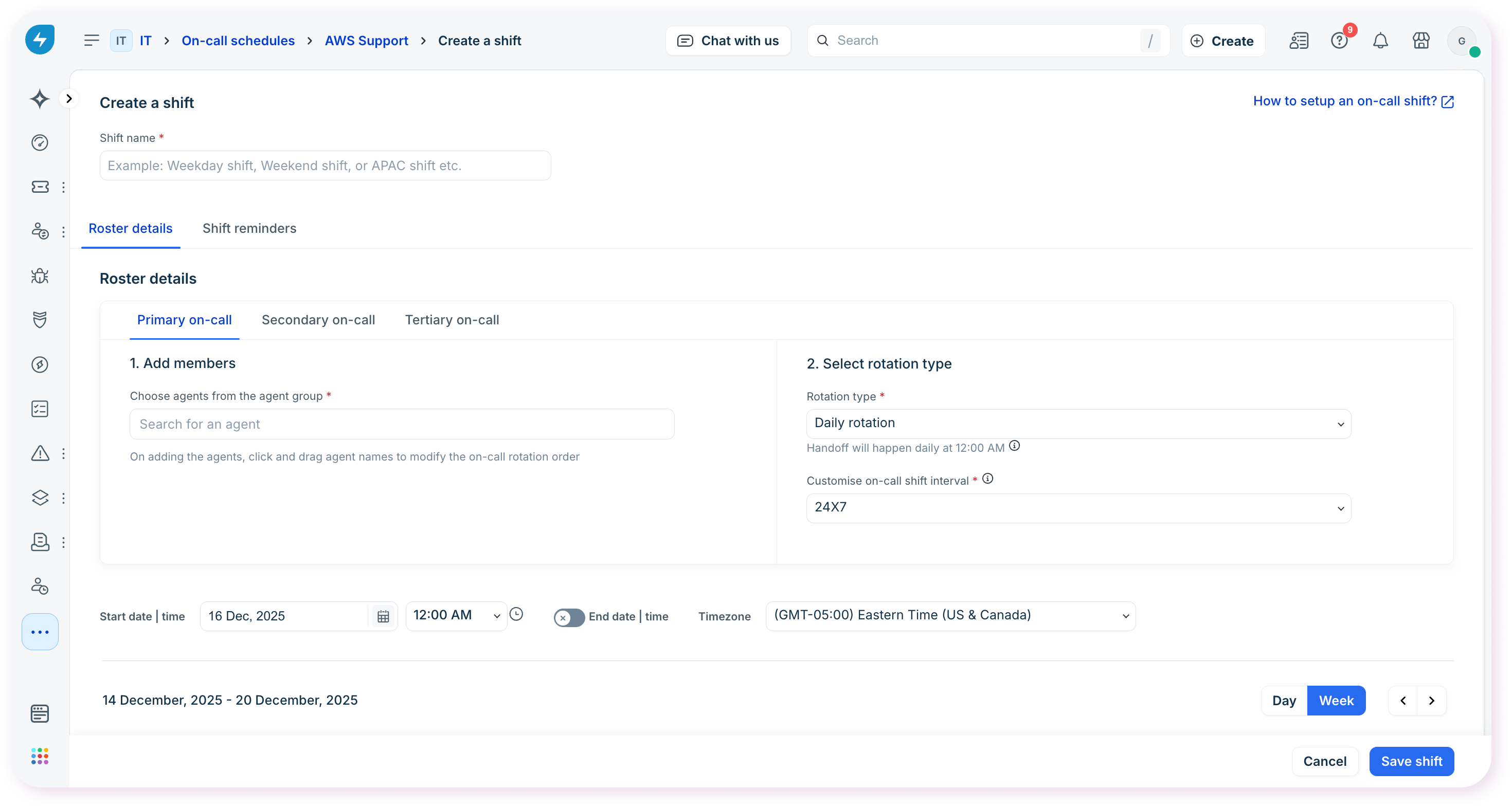
This creates an on-call schedule. Once the on-call schedule is created, you can proceed to configure shifts to assign to the schedule. Learn more about creating shifts here.
Note: An agent group associated with an on-call schedule will not be available for selection. In case no agent group is available for selection, go to the Admin panel, scroll down to User Management section, and create a new agent group. This new agent group will then be available for selection when you create a new on-call schedule.
Was this article helpful?
That’s Great!
Thank you for your feedback
Sorry! We couldn't be helpful
Thank you for your feedback
Feedback sent
We appreciate your effort and will try to fix the article