TABLE OF CONTENTS
- Prerequisites
- Overview
- Set a module as your dynamic landing page
- Reset sidebar customization to default
- Set a default landing dashboard for all agents
This article provides details about configuring dynamic landing pages and setting an account-wide default landing dashboard in Freshservice.
Prerequisites
To customize your dynamic landing page, you must have an active agent or administrator account with access to the navigation sidebar.
To configure an account-wide default landing dashboard, you must have administrator privileges.
Overview
Freshservice allows you to personalize your workspace navigation and establish a consistent starting view for all agents across your organization.
Dynamic landing page
By default, Freshservice directs all agents and administrators to the Dashboard module upon signing in or returning to the agent portal from the requester portal.
With dynamic landing pages powered by the updated navigation sidebar, you can designate any primary sidebar module as your personal landing page. When you designate a module such as Tickets, signing in takes you directly to the default route of that module (for example, the Tickets list view). If you configure the Admin module as your landing page in an account with multiple workspaces, Freshservice automatically routes you to the primary workspace Admin page.
Default landing dashboard
Organizations frequently use custom or team-specific dashboards to monitor critical service desk metrics. Previously, Freshservice defaulted agents to My Dashboard or their most recently viewed dashboard, requiring each agent to manually switch to their team dashboard.
The default landing dashboard feature allows administrators to designate a single, account-wide dashboard for all agents. Key characteristics of this feature include:
Account-wide scope: The default dashboard applies to every agent in the account.
Visibility requirement: The dashboard must have visibility set to All agents. Dashboards restricted to individual agents or specific agent groups cannot serve as the default.
Single default: Only one dashboard across the account can hold the default designation at a time.
Non-sticky navigation: Agents can switch to any other dashboard during their session to review relevant data. However, the next time they navigate back to the Dashboard module, Freshservice automatically returns to the administrator's default dashboard rather than the last visited view.
Visual indicator: A Default badge appears next to the dashboard name in the dashboard switcher list.
Set a module as your dynamic landing page
To choose a custom module as your initial landing page, follow these steps:
Log in to your Freshservice account.
In the navigation sidebar, select Customize sidebar.
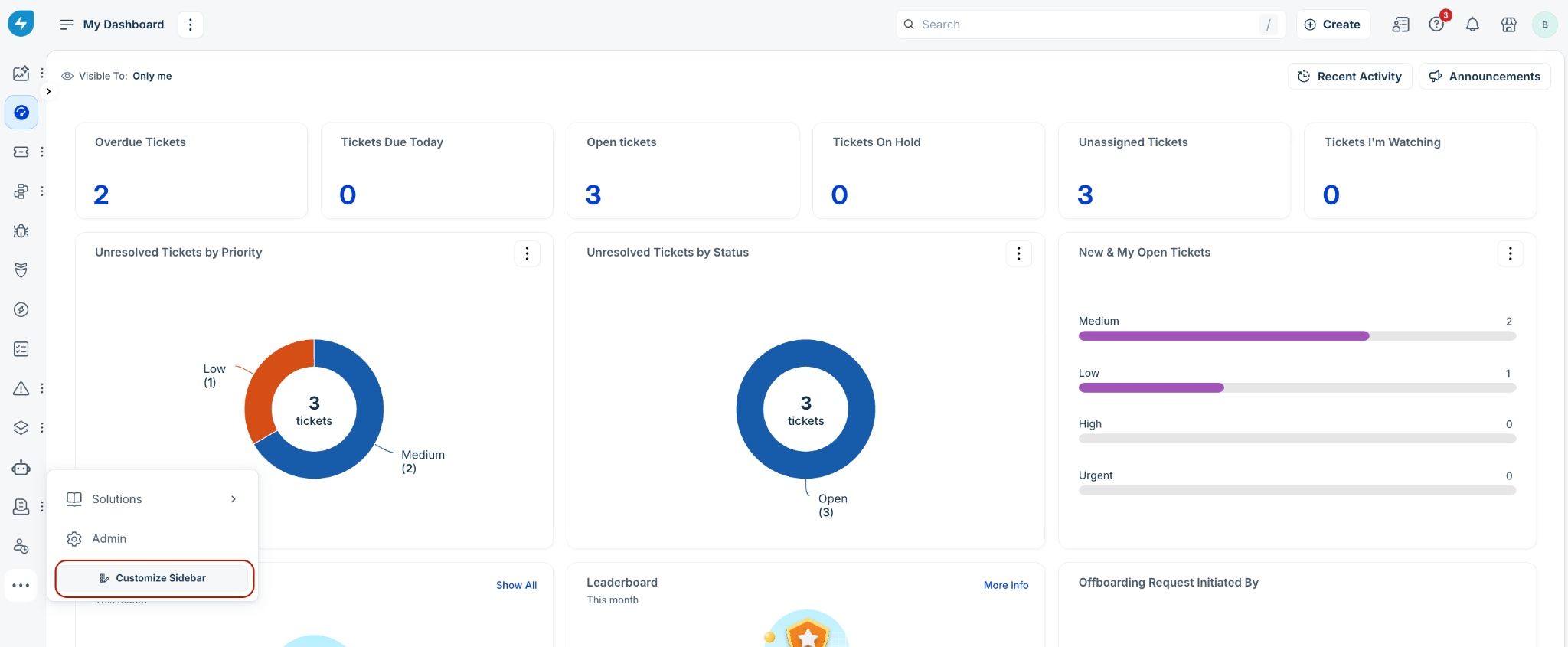
In the Customize your sidebar panel, hover over the module you want to set as your landing page.
Select the Set as landing page icon next to the module name.
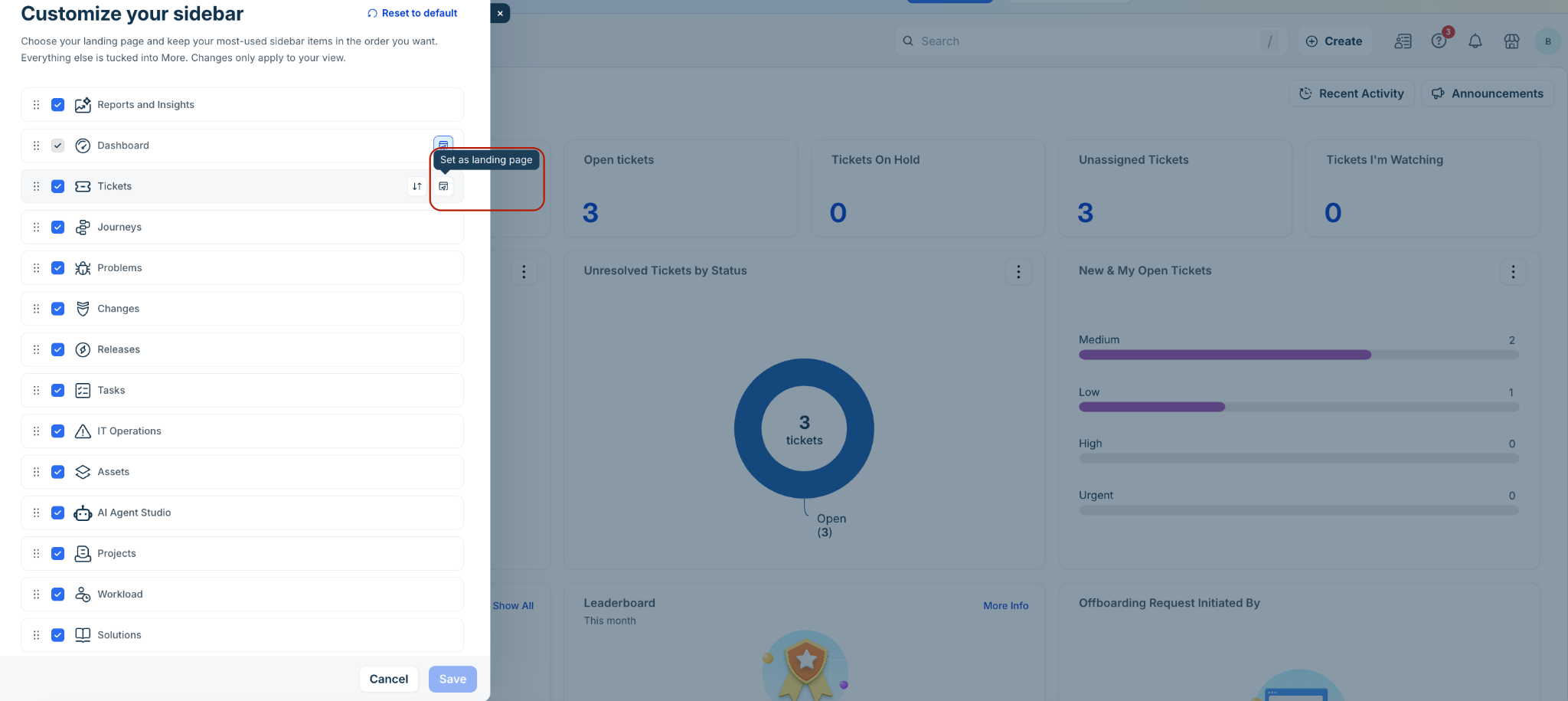
Click Save.
Note: When this feature is launched, the Dashboard remains the default landing page until you change it.
Reset sidebar customization to default
To revert your sidebar layout and landing page back to standard account settings, follow these steps:
In the navigation sidebar, choose Customize sidebar.
In the upper-right area of the panel, select Reset to default.
In the confirmation prompt, select Yes.
Click Save.
Note: Resetting to default restores the original module order in the sidebar and resets your landing page to Dashboard.
Set a default landing dashboard for all agents
Administrators can designate a specific dashboard as the standard landing view for all agents.
To configure a default landing dashboard, follow these steps:
Go to Dashboard.
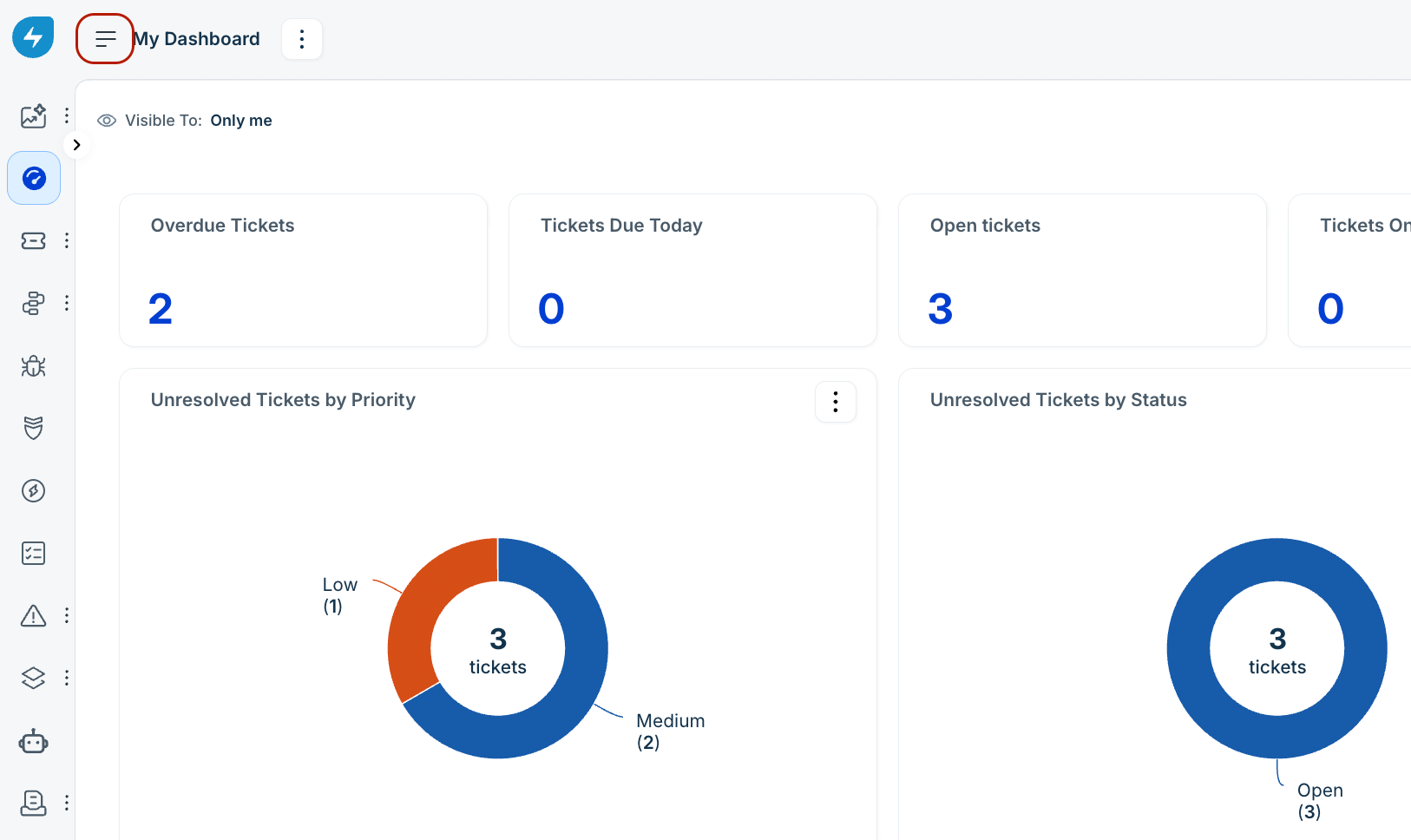
Open the dashboard switcher.
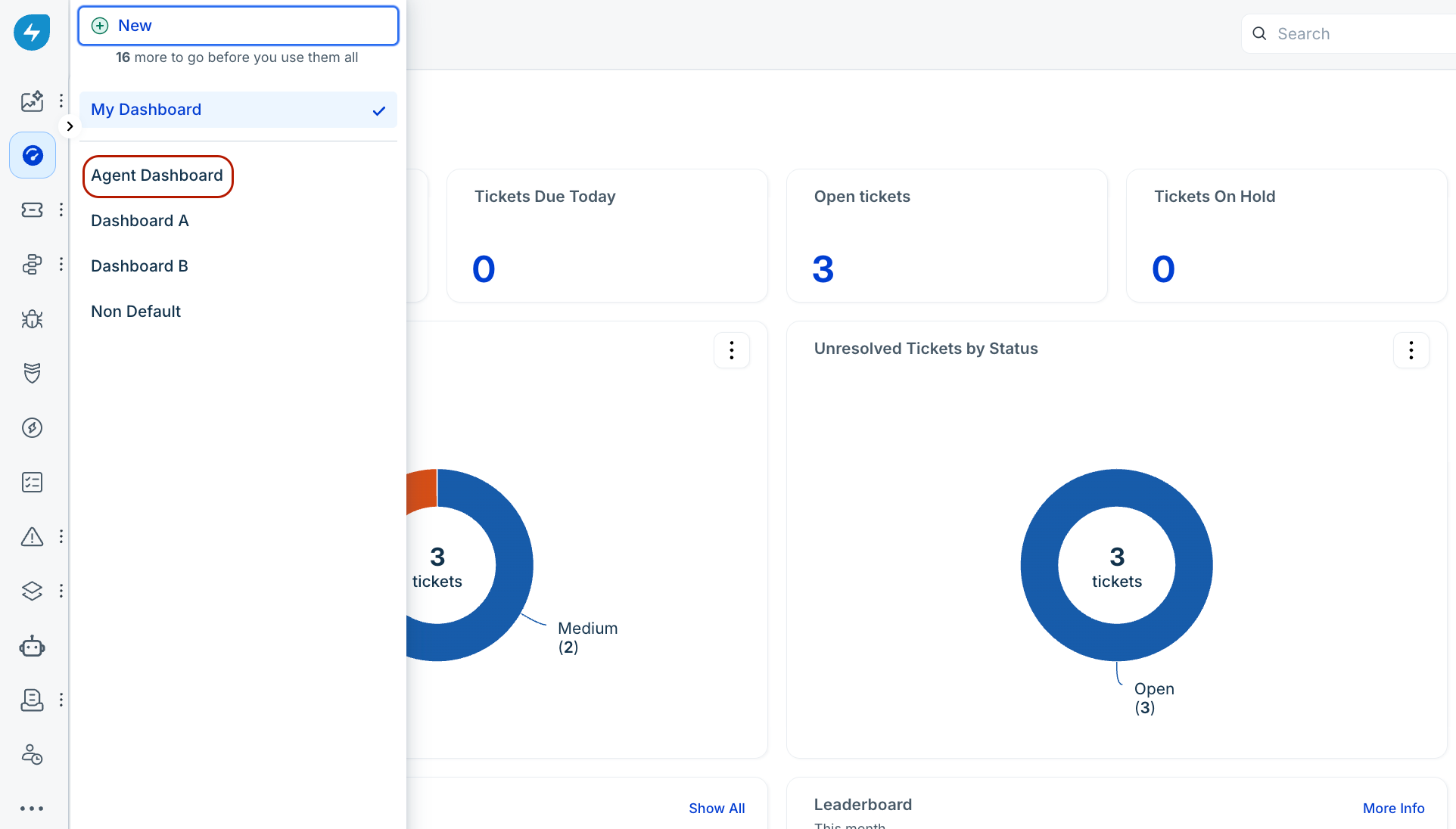
Choose the dashboard you want to set as the default.
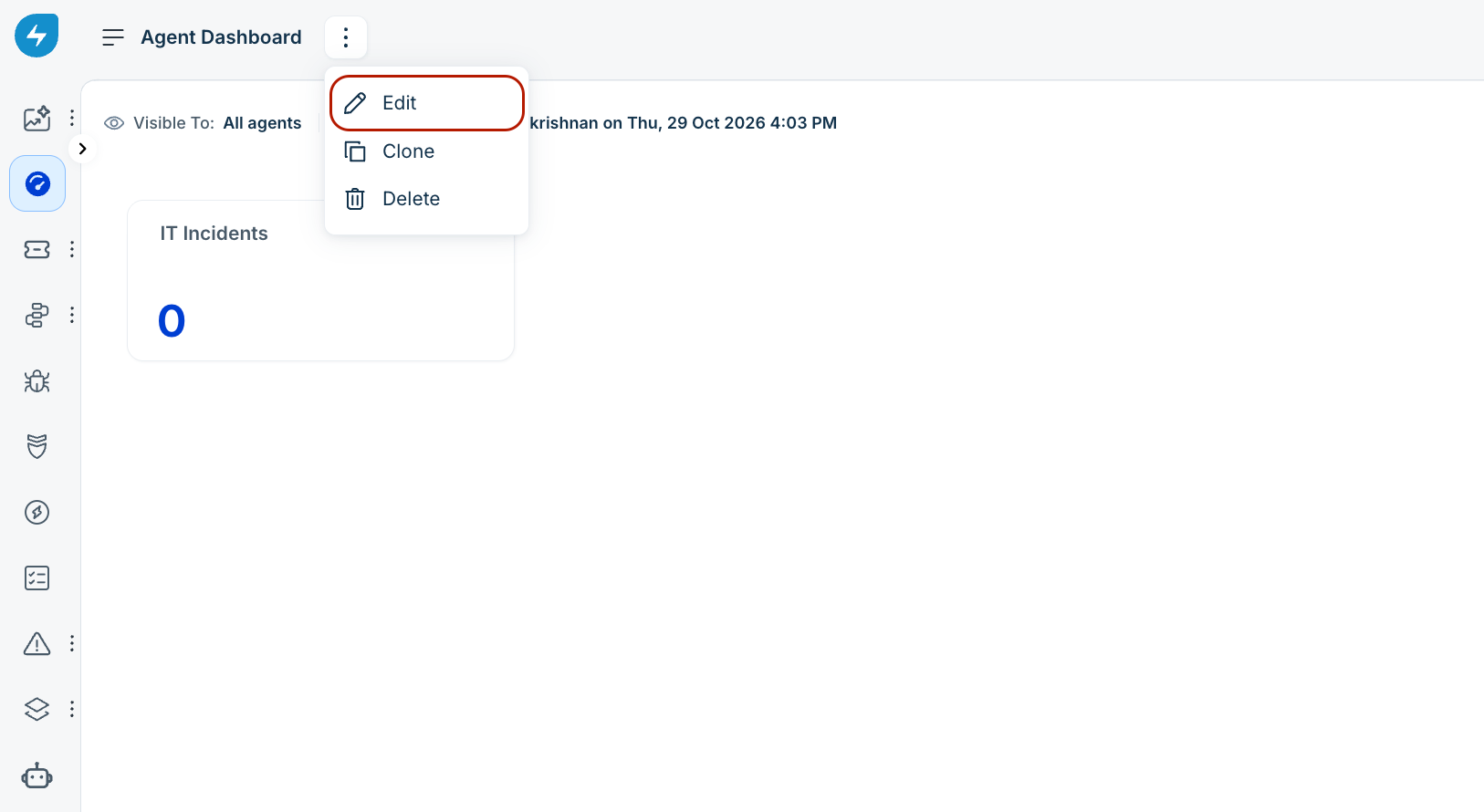
Click the More options icon and select Edit.
Under the Visible To section, choose All agents.
Select the Set as default dashboard checkbox.
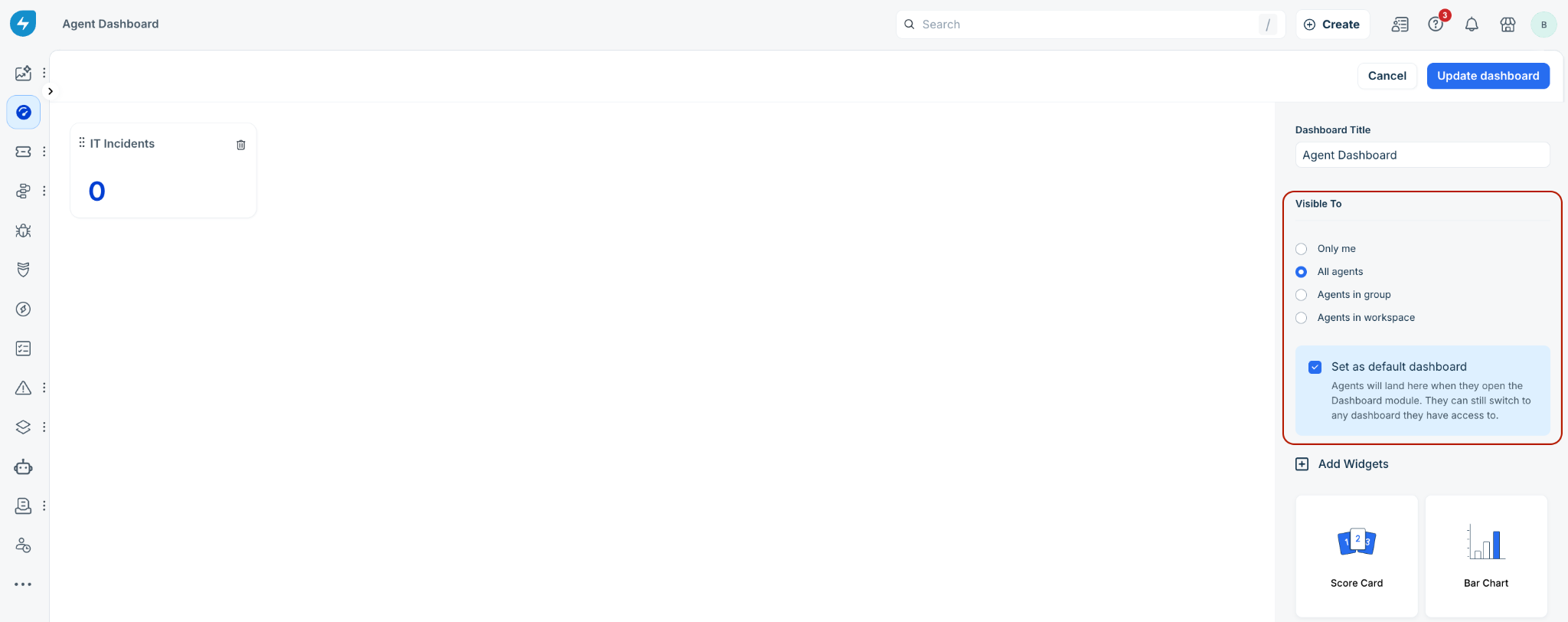
Click Update dashboard.
Important: The Set as default dashboard option is disabled if visibility is set to Only me, Agents in group, or Agents in workspace. Designating a new dashboard as default automatically replaces any previously configured default dashboard.
Was this article helpful?
That’s Great!
Thank you for your feedback
Sorry! We couldn't be helpful
Thank you for your feedback
Feedback sent
We appreciate your effort and will try to fix the article