IN THIS ARTICLE
- Why cancel a Journey request?
- How to cancel a Journey request?
- What happens when you cancel a journey request?
If the Admin has granted you cancellation permission, you can cancel the journey request at any time after initiation and before completion.
Why cancel a Journey request?
You might need to cancel a journey request in situations such as:
The new hire did not join the organization.
The employee’s role or department changed, requiring a different onboarding process.
Duplicate or incorrect journey requests were submitted.
The request created is no longer relevant.
How to cancel a Journey request?
Perform the following steps to cancel a journey request:
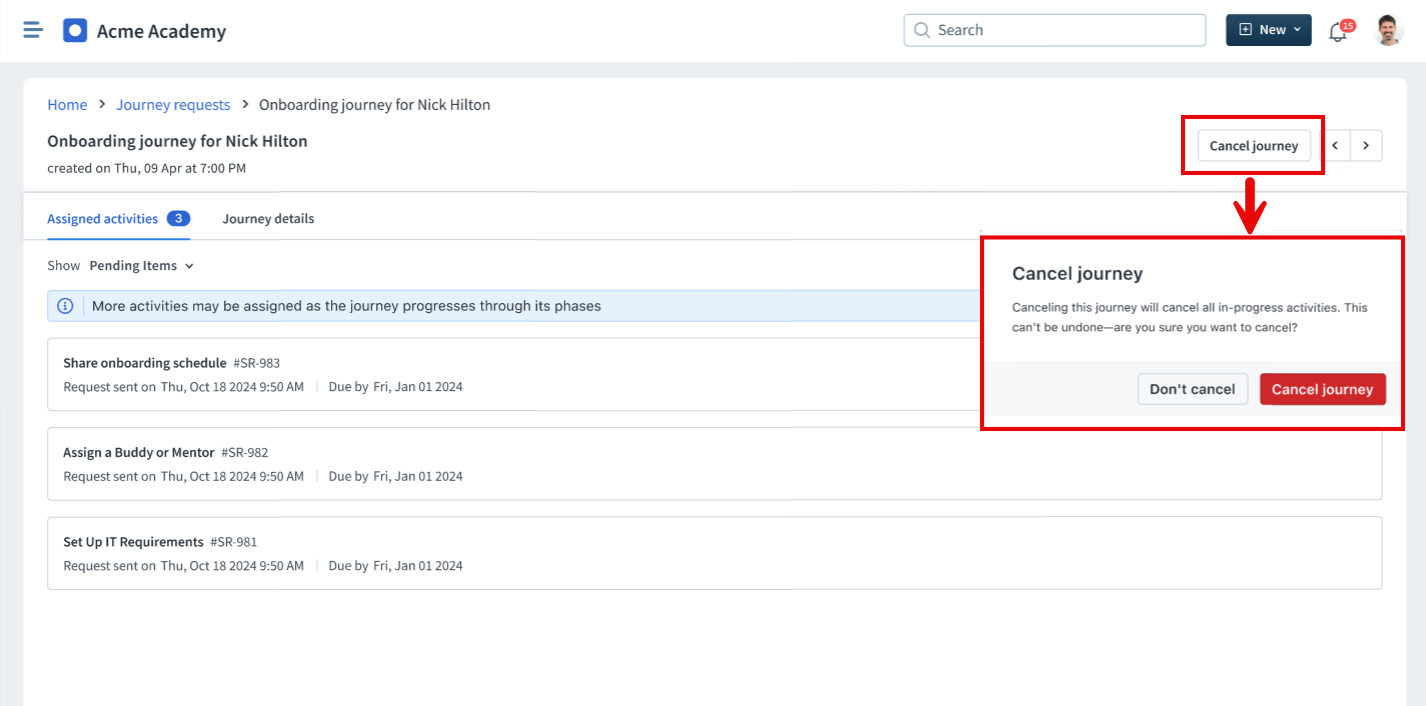
Open the journey details page of the journey request you want to cancel.
If cancellation permission is enabled, a Cancel Journey button will appear in the upper right corner of the screen.
Click Cancel Journey and confirm the action.
What happens when you cancel a journey request?
- The journey request status changes to Cancelled.
- All open activities and tasks are stopped and marked as Cancelled.
Notifications are sent to relevant stakeholders, such as the initiator, managers, and assigned agents.
Any service requests linked to the journey request will be cancelled.
All activities remain recorded for audit and tracking purposes.
Was this article helpful?
That’s Great!
Thank you for your feedback
Sorry! We couldn't be helpful
Thank you for your feedback
Feedback sent
We appreciate your effort and will try to fix the article