IN THIS ARTICLE
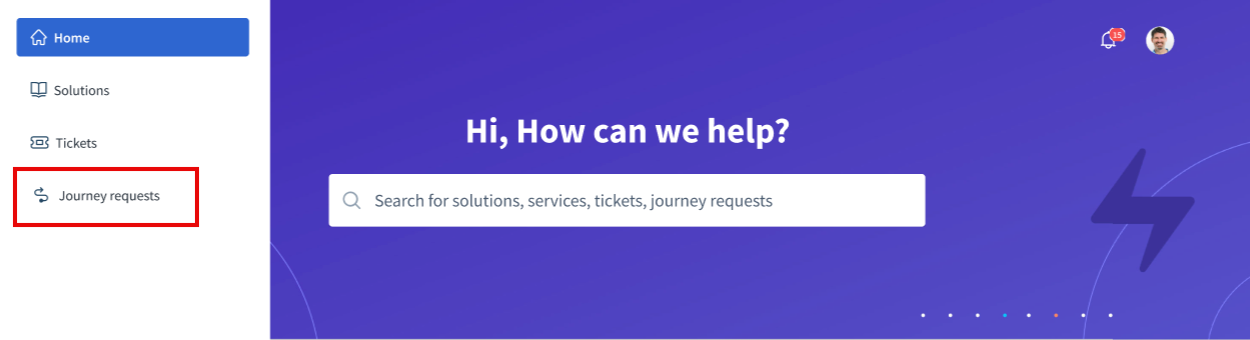
After submitting a journey request, either individually or through a bulk upload request, you can access the journey requests by clicking the menu icon (hamburger) in the top-left corner and selecting Journey requests from the left panel that appears.
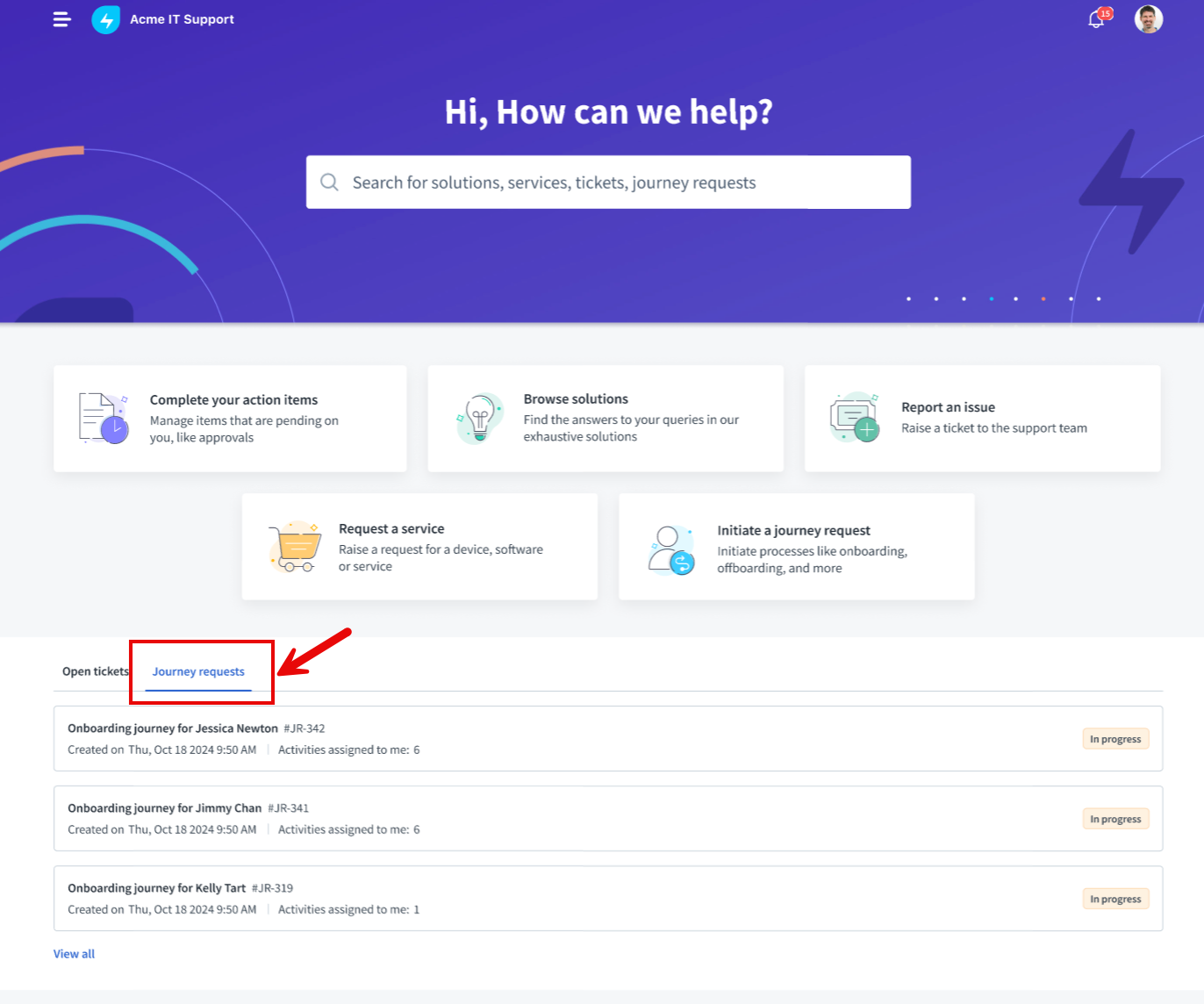
Alternatively, you can click the Journey requests tab at the bottom of the support portal home page to view all your initiated journey requests.
On the Journey Requests page
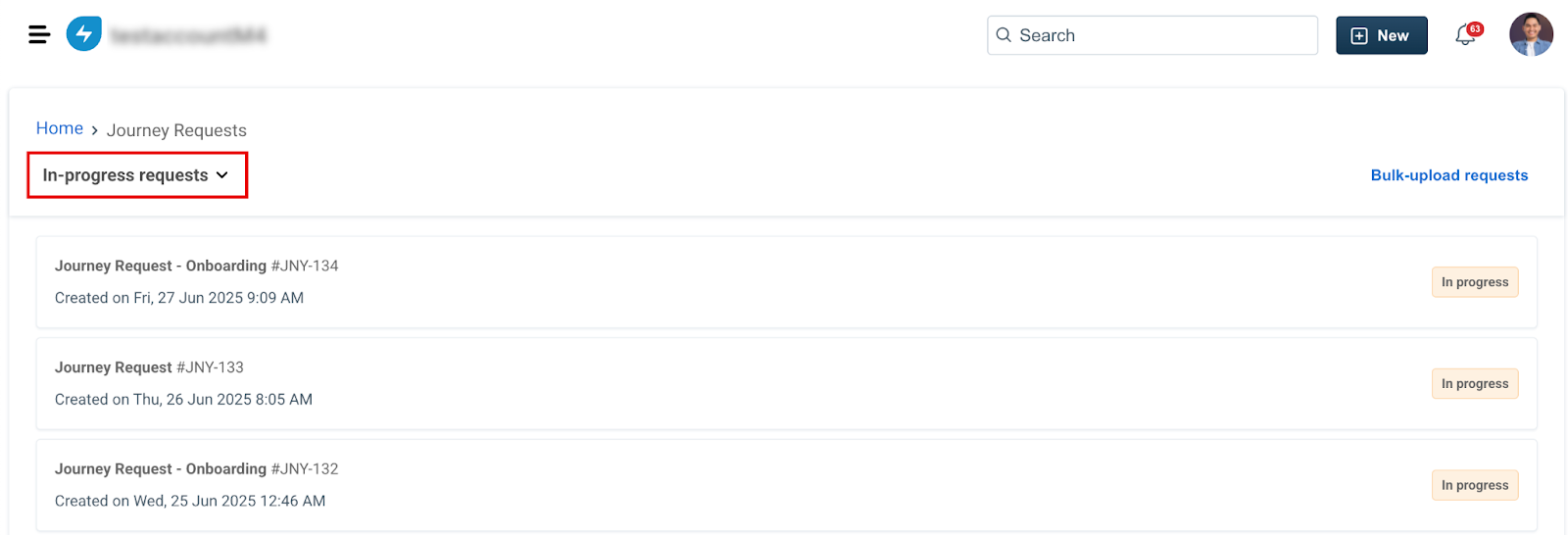
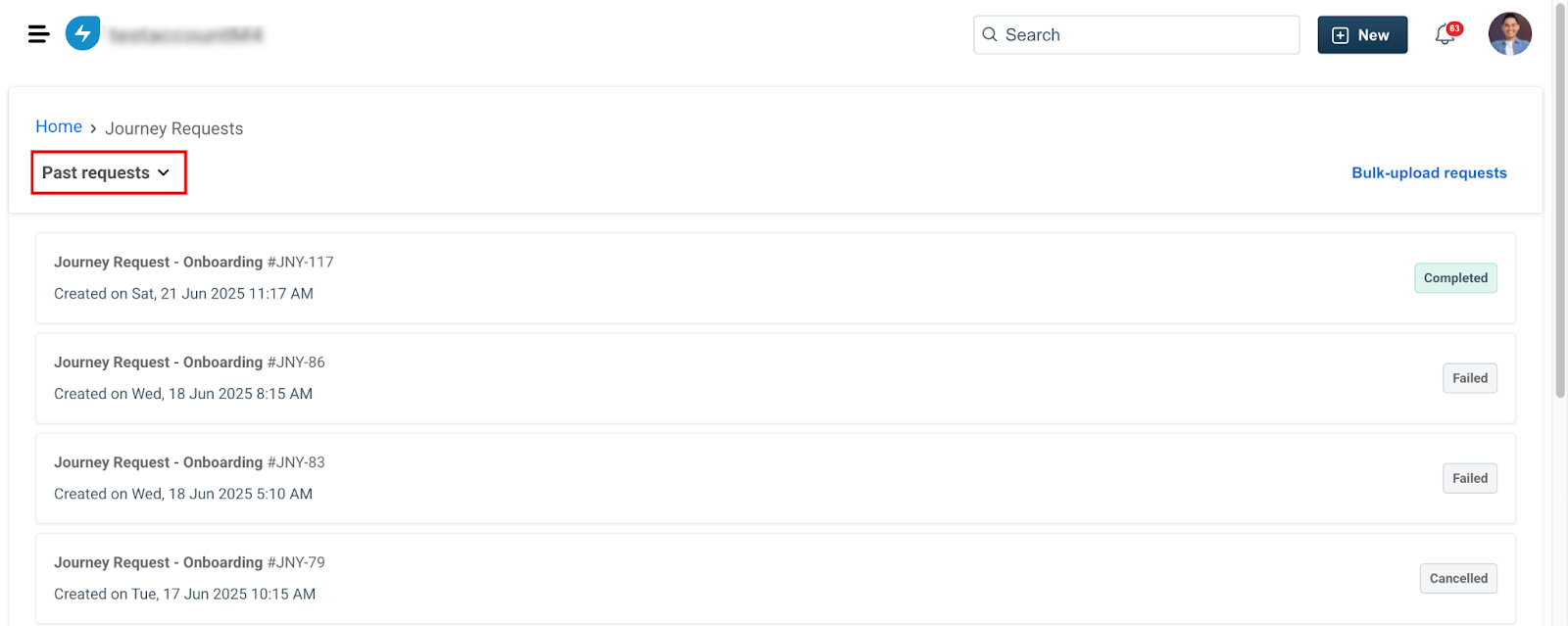
On the Journey requests page, you can view details for each journey request, including the journey request name, unique ID, created timestamp, activities assigned, journey request status, and more.
You can filter journeys by status to easily sort and manage your journey requests. The available filter options include:
In-progress requests: Includes journey requests with the statuses Initiated and In-progress.
Past requests: Includes journey requests with the statuses Completed, Cancelled, and Failed.
Journey Request Details View
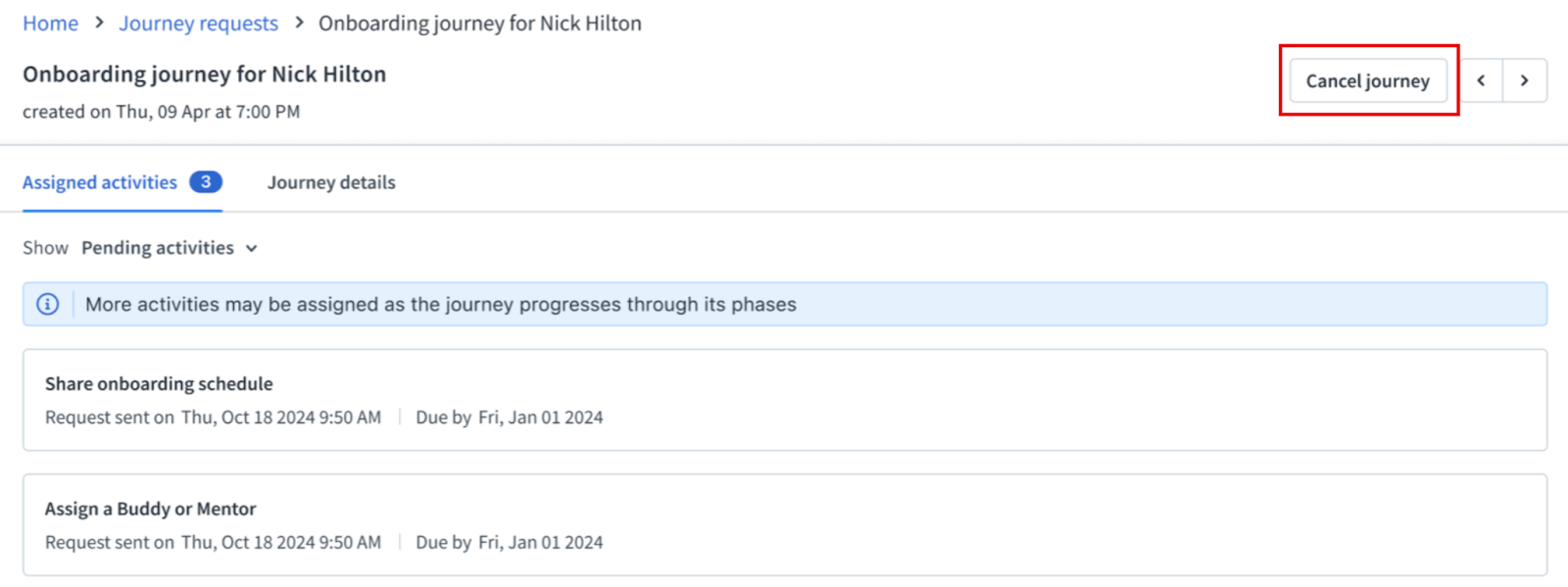
Select the desired journey request from the list to view its details, including the journey request name, created timestamp, and two tabs—Assigned activities and Journey details.
Under Assigned activities, you can view the pending and past activities related to the journey request. The drop-down menu next to the Show option allows you to filter activities by status: Pending activities or Past activities.
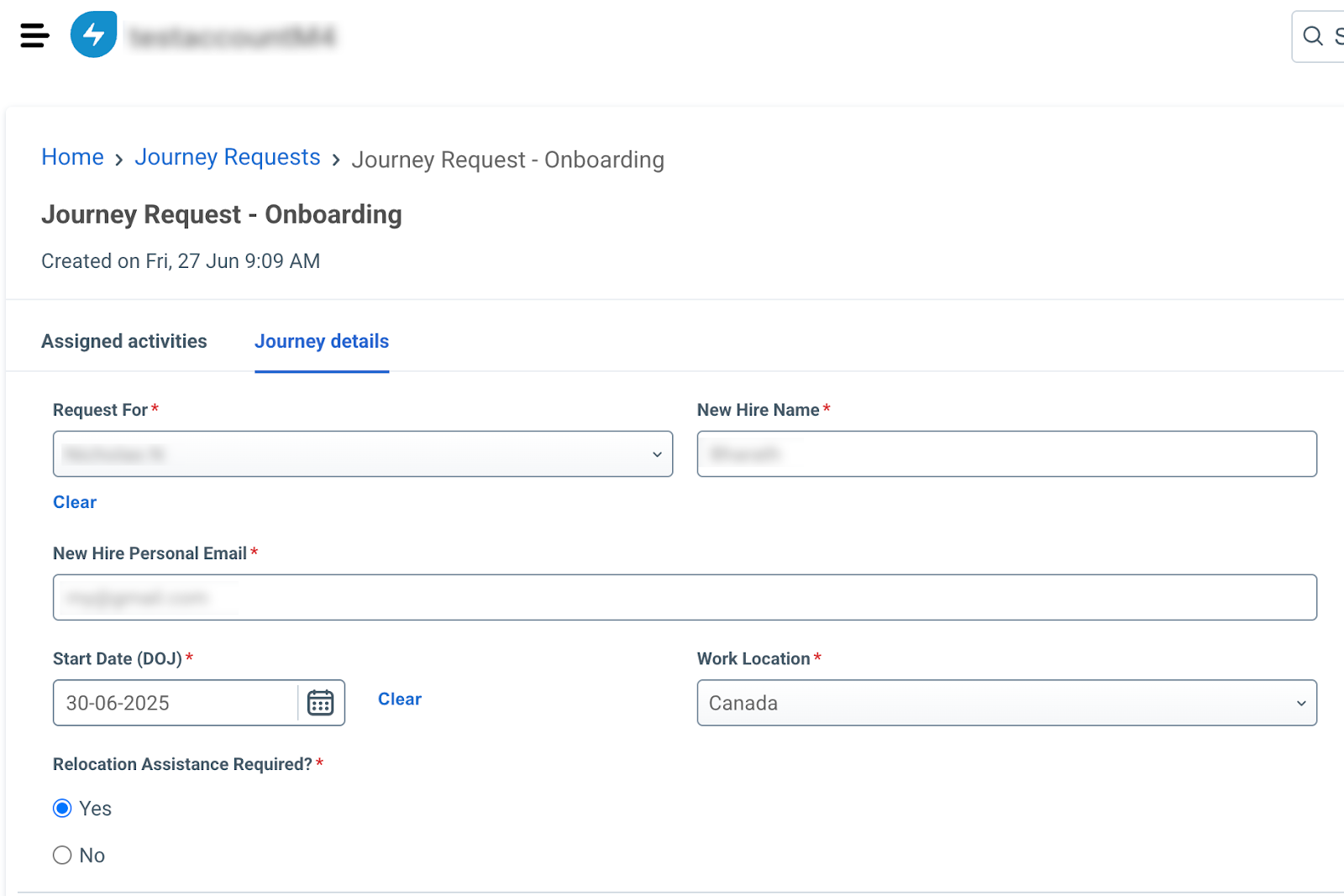
Under Journey details, you can view the initiator form you submitted when creating the journey request. You can edit the entered fields and select Update to save your changes. However, updating journey details may impact subsequent activities in the request.

Note: If the Admin has granted you cancellation permission, you can cancel the journey request at any time after initiation and before completion. To learn more about cancelling a journey request, see Cancel a Journey Request.
Was this article helpful?
That’s Great!
Thank you for your feedback
Sorry! We couldn't be helpful
Thank you for your feedback
Feedback sent
We appreciate your effort and will try to fix the article