Link a change to an incident to track the relationship between service disruptions and the changes made to resolve them.
Freshservice lets you create a
Change initiated by this incident - Select this option when the incident requires a change to restore or improve service.
Change initiating this incident - Select this option when a change caused the incident.
Follow these steps to link a change to an Incident.
Go to the incident you want to link to a change.
Click Associate.
If the incident requires a change to restore or improve service, follow these substeps:
Click Change initiated by this ticket.
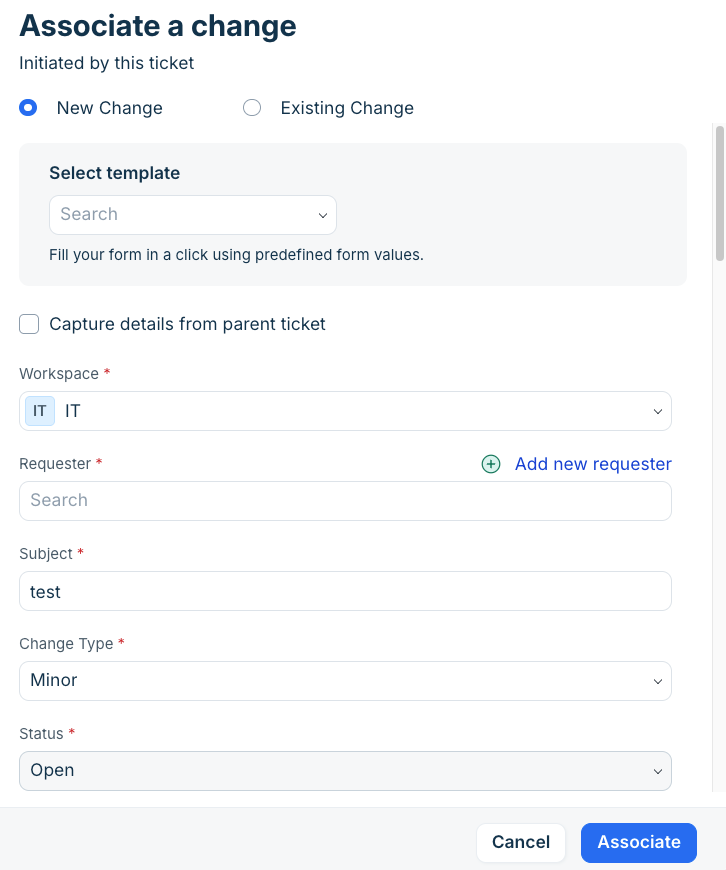
The Associate a change section form is displayed.To create a new change, select New Change and create a new change.
Or, if you want to link to an existing change, select Existing Change and select from the available list of change.Click Associate.
If a change caused the incident, follow these substeps:
Click Change initiating this ticket.
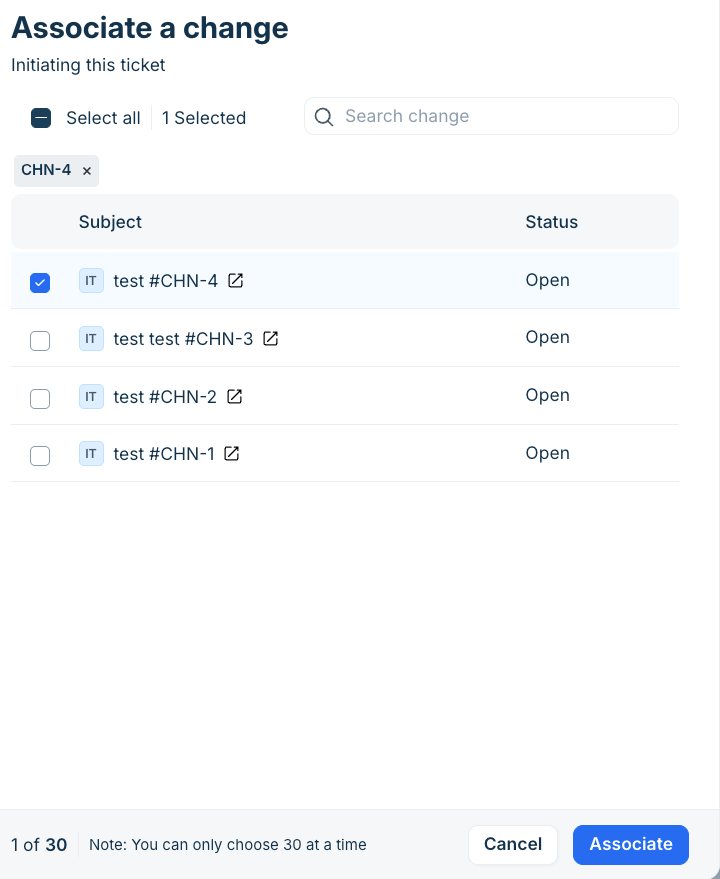
The Associate a change section is displayed and it shows an existing list of change.Select a change from the list.
Click Associate.
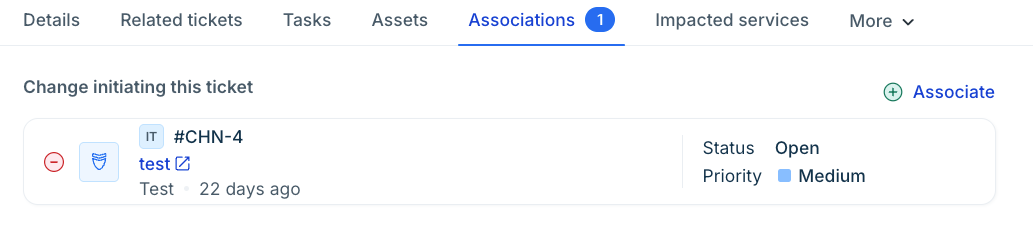
The change is linked to the incident and it is displayed under Associations as shown in the following image.
Was this article helpful?
That’s Great!
Thank you for your feedback
Sorry! We couldn't be helpful
Thank you for your feedback
Feedback sent
We appreciate your effort and will try to fix the article