As a user in Freshservice, you may want to freeze certain change properties once a change request has been approved to ensure certain details related to your product or service are not accidentally changed once they are approved.
You can use Freshservice to set up a business rule that will prevent people from editing certain fields after approval. 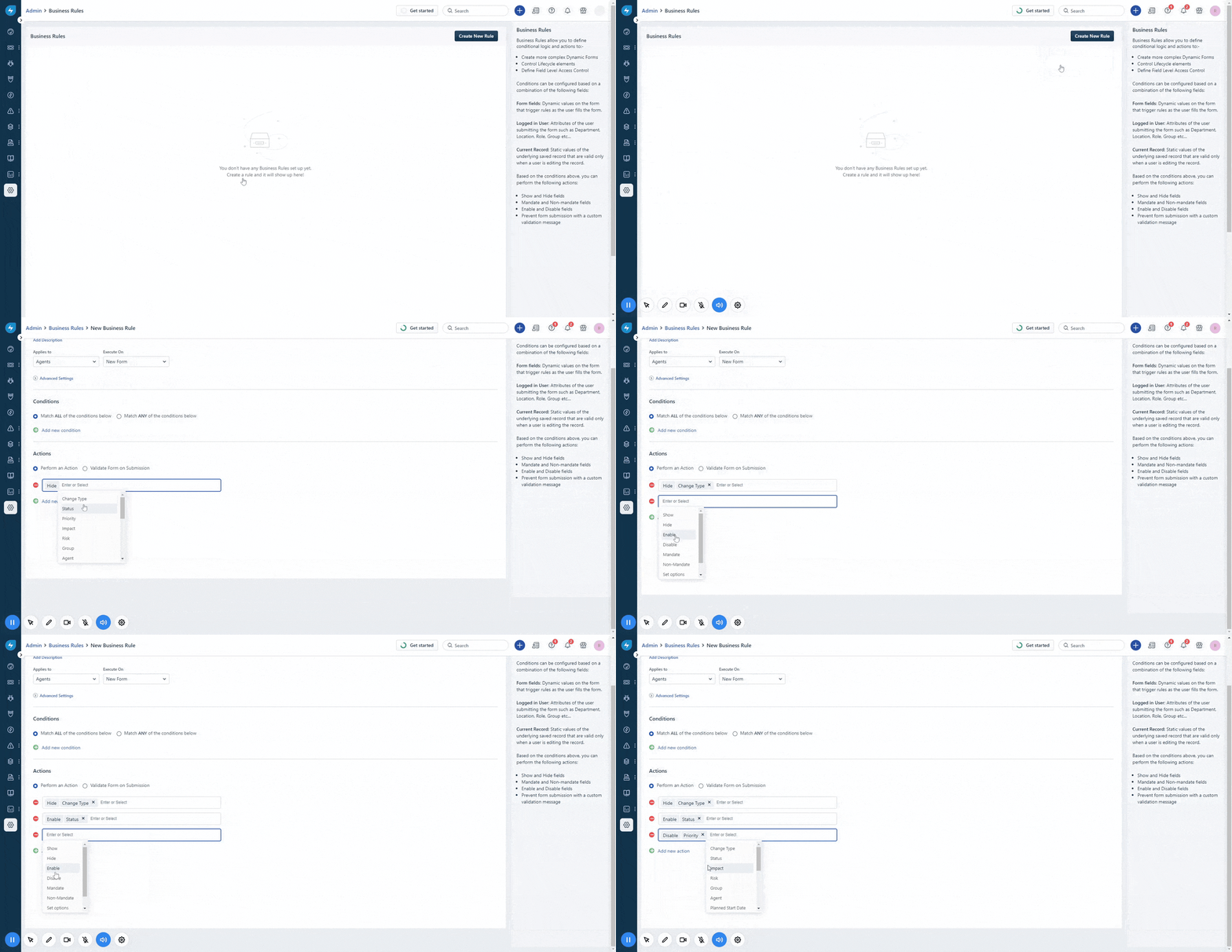
Alternatively, you can configure the change lifecycle using the Lock fields option so that certain fields can only be edited during specific stages. For example, you can freeze required fields (e.g., rollout plan) under a status (e.g. planning) in the lifecycle of a change request. This ensures that users cannot accidentally make changes to crucial fields once the change has progressed to a later stage.
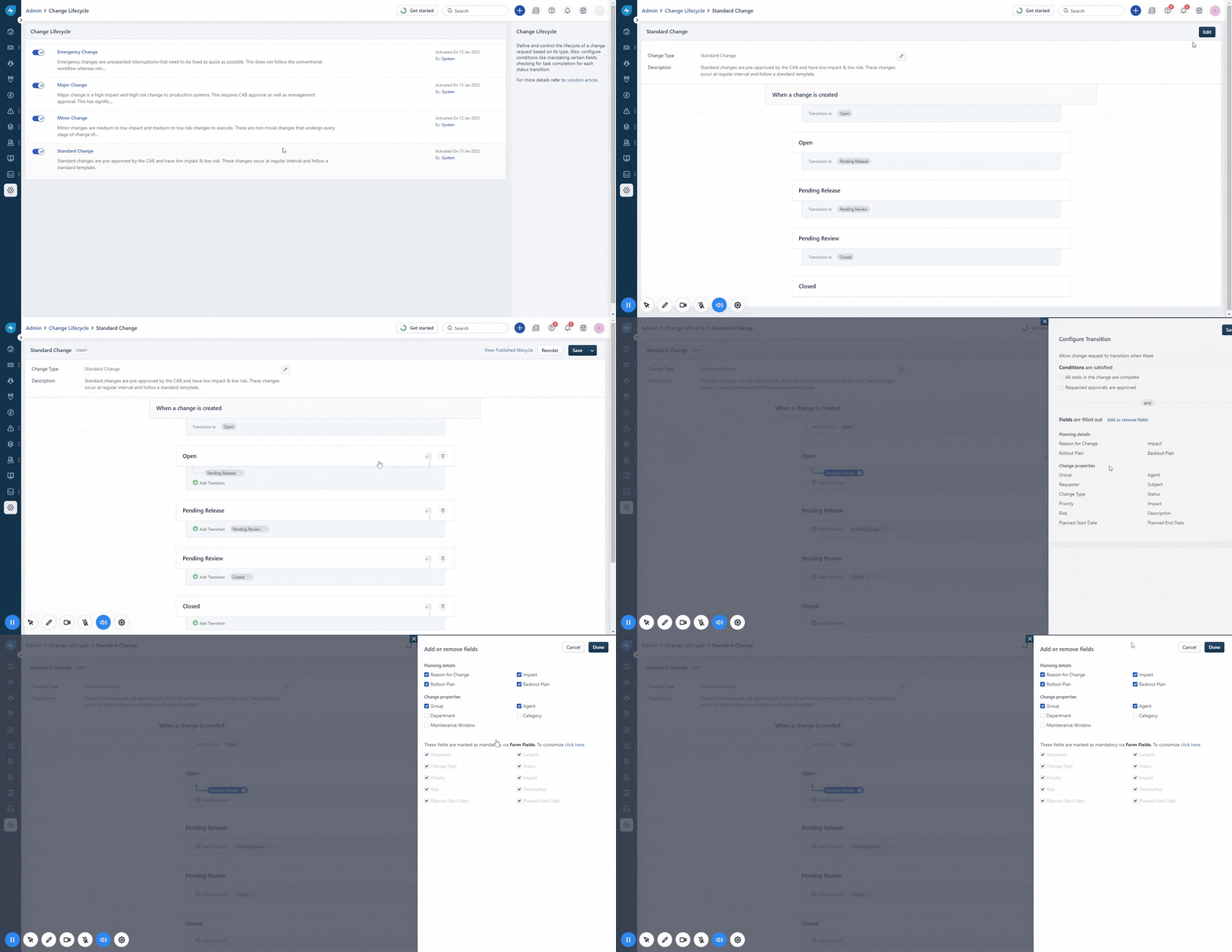
Please refer to our solution article on managing the change lifecycle for detailed information on leveraging the lock field option.
Was this article helpful?
That’s Great!
Thank you for your feedback
Sorry! We couldn't be helpful
Thank you for your feedback
Feedback sent
We appreciate your effort and will try to fix the article