To delete a Change permanently from your Freshservice account, please follow these steps:
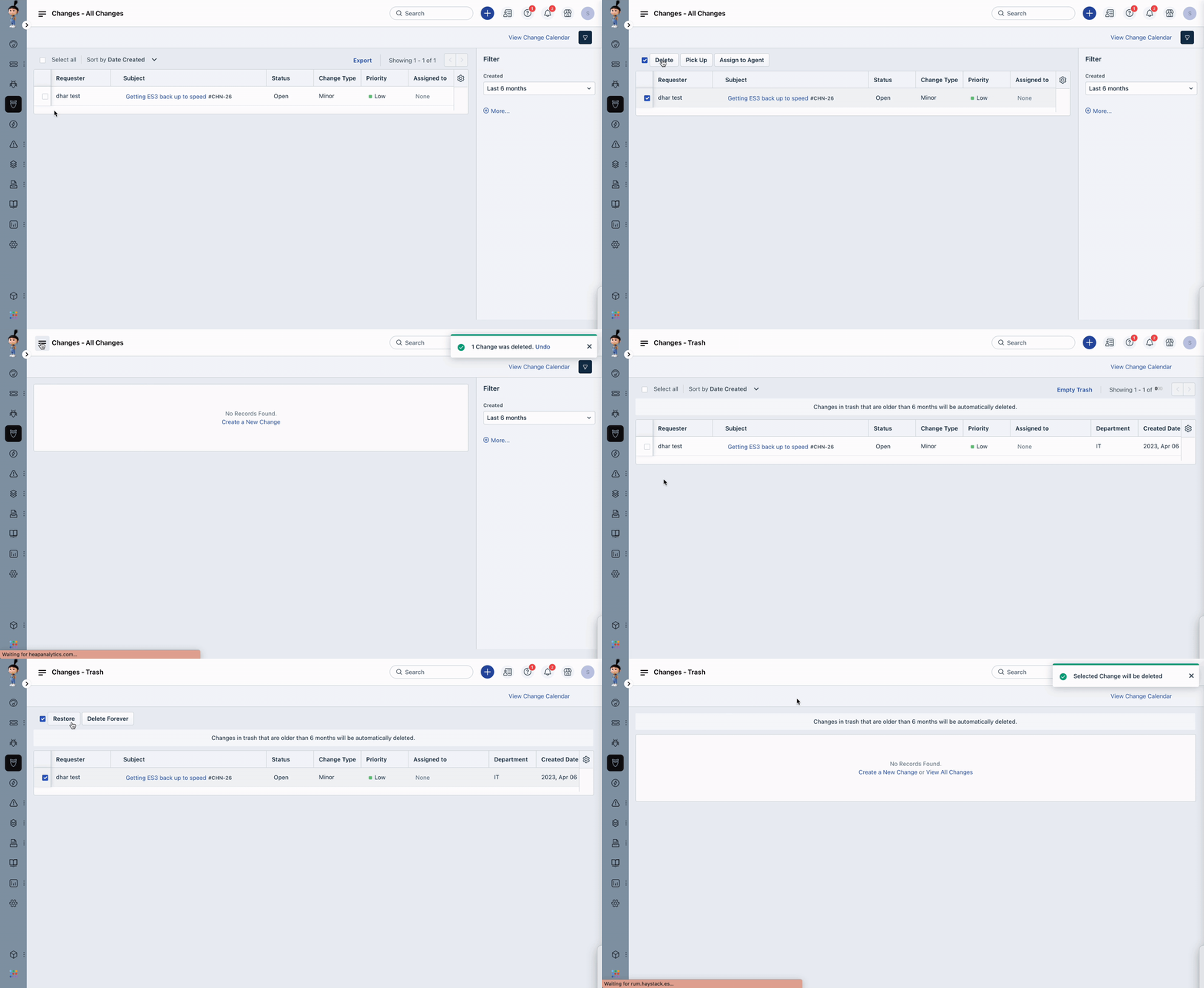
Go to the Changes module in your Freshservice account.
Select the Change that you want to delete and click Delete.
Alternatively, you can open the change, click the More dropdown, and then click the Delete option.
The deleted change will be moved to the Trash folder.
Click on the hamburger icon and select the Trash folder.
Select the change again and click Delete Forever to delete the Change permanently.
Please note that a Change cannot be recovered once it is deleted. If there are any associated tickets or assets, they will not be deleted along with the Change, but they will no longer be associated with it. If you need to keep a record of the Change or its associated tickets/assets, we recommend exporting them before deleting it.
Was this article helpful?
That’s Great!
Thank you for your feedback
Sorry! We couldn't be helpful
Thank you for your feedback
Feedback sent
We appreciate your effort and will try to fix the article