In Freshservice, you can automate the change type based on certain conditions using the workflow automator feature. This can help streamline your change management process and ensure that the appropriate change type is assigned to each change request.
Here are the steps to set up the automation:
- Go to Admin > Automation & Productivity > Automation > Workflow Automator.
- Click the New Rule button and select Event Based Workflow.
- Name your rule and under the Events section, choose the Change is created trigger from the dropdown menu.
- Drag and drop a Condition block, and choose conditions like requester or any other change request fields that you may have added.
- Drag and drop an Action block, and select Perform these actions on Change from the dropdown menu.
- Select Set Change type as and choose the appropriate change type that you want to assign based on the conditions you set in the previous step.
- Save and Automate your automation rule.
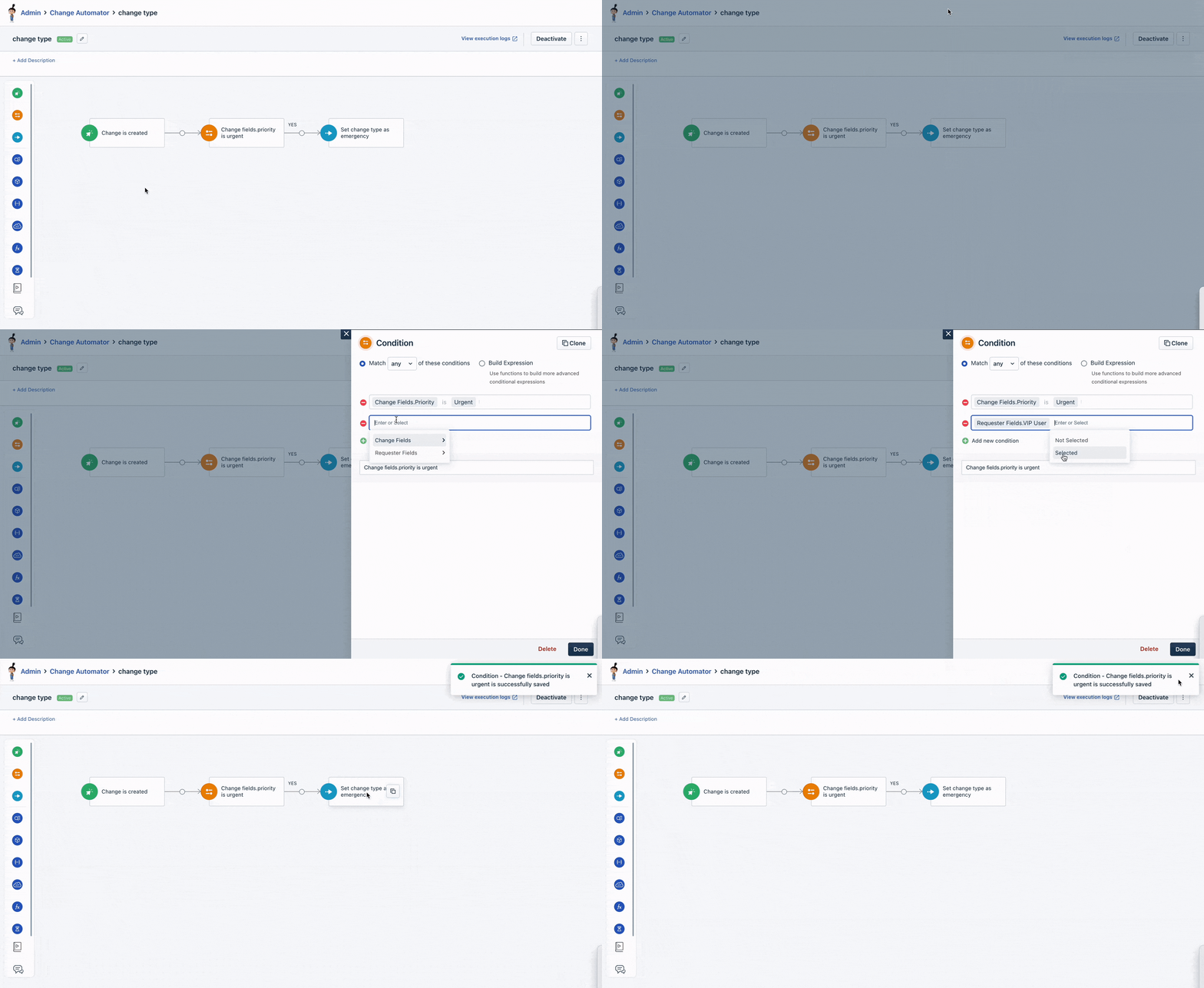
Any new tickets that match the conditions you set will be automatically assigned the change type that you specified in the automation.
It's important to note that automation rules are executed in the order they are listed, from top to bottom. So, if you have multiple automation rules affecting the same ticket, arrange them in the correct order to avoid conflicts.
Was this article helpful?
That’s Great!
Thank you for your feedback
Sorry! We couldn't be helpful
Thank you for your feedback
Feedback sent
We appreciate your effort and will try to fix the article