Freshservice comes with 8 pre-defined options for Change Types. While you can rename them to fit your needs, adding more than 8 options is not supported. You can also turn the type ON/OFF as required.
Here are the steps to change the name and toggle a Change Type in Freshservice:
- Log in to Freshservice as an administrator.
- Go to Admin > Service Management > Service Desk Settings > Field Manager.
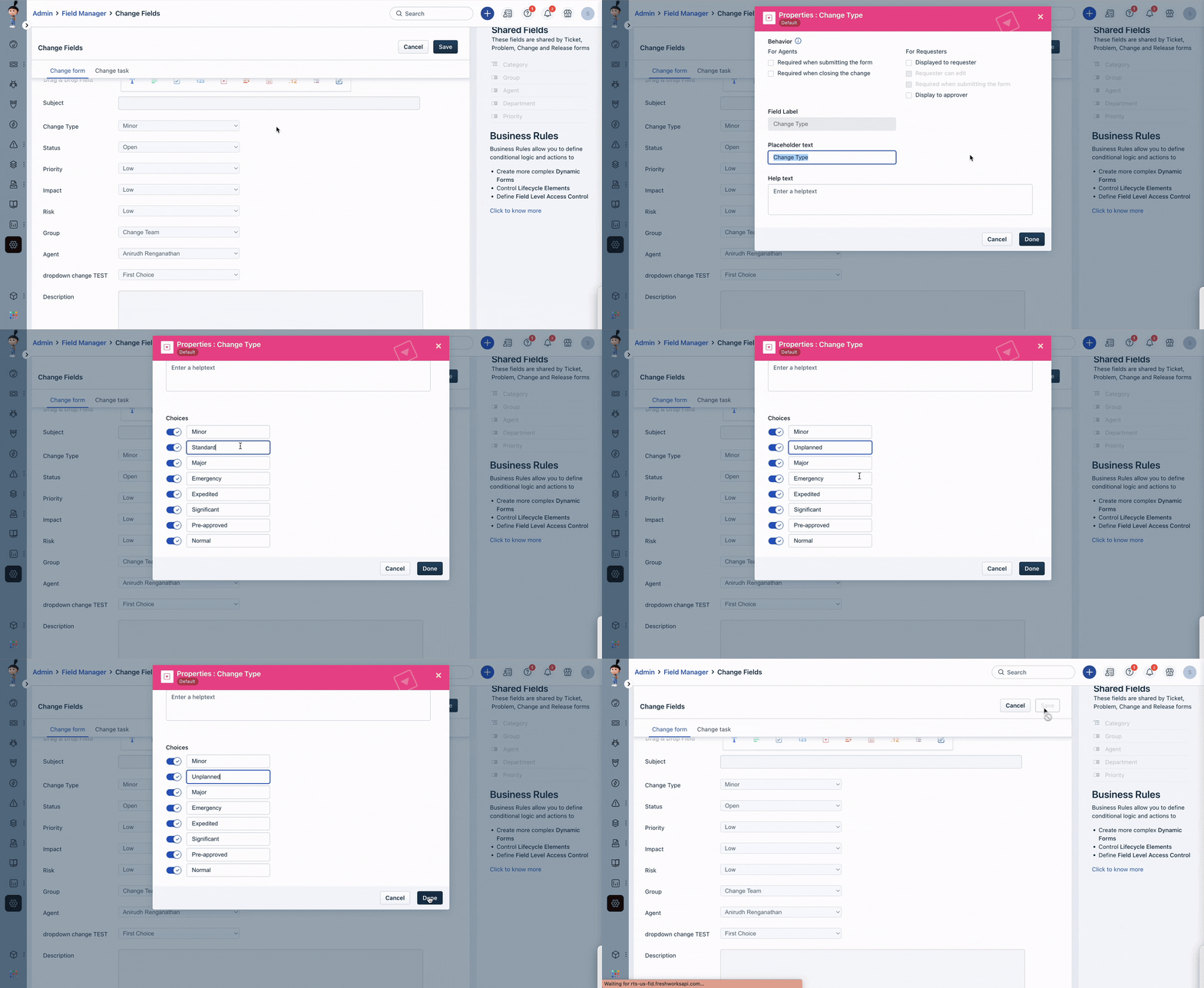
- Select the Change Fields and click on the pencil icon next to Change Type field.
- Scroll down to the Choices section, where you will find the name of each Change type.
- You can update the name of the Change Type as per your business requirement.
- To toggle a Change Type ON/OFF, click on the switch icon beside the respective type.
- The switch will turn green if the type is ON and gray if it is OFF.
- Click Done and Save the updates.
Was this article helpful?
That’s Great!
Thank you for your feedback
Sorry! We couldn't be helpful
Thank you for your feedback
Feedback sent
We appreciate your effort and will try to fix the article