You can easily export the changes scheduled in Freshservice by following these simple steps:
Go to the Changes module in Freshservice.
Click on the hamburger icon to select a view, or use the filter section to narrow down your search if necessary.
Once you have the desired set of changes, click on Export button at the top right corner of the page.
Select the format in which you want to export the data - CSV or Excel.
Choose the fields you want to export and click on Export to download the file.
You can now use this exported file for further analysis, reporting, or sharing with other teams.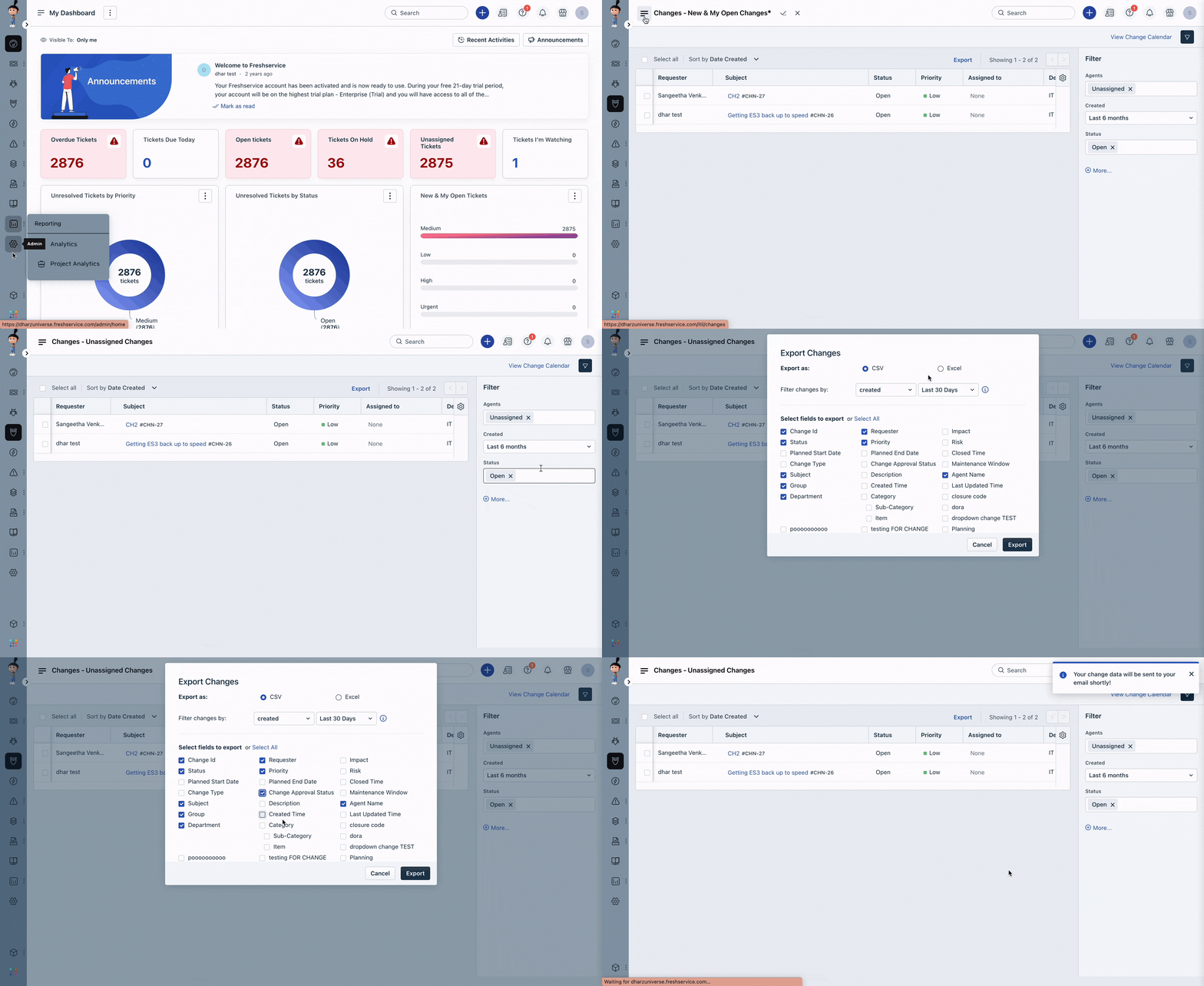
Was this article helpful?
That’s Great!
Thank you for your feedback
Sorry! We couldn't be helpful
Thank you for your feedback
Feedback sent
We appreciate your effort and will try to fix the article